|
One-to-Many
Forms (Cont'd)
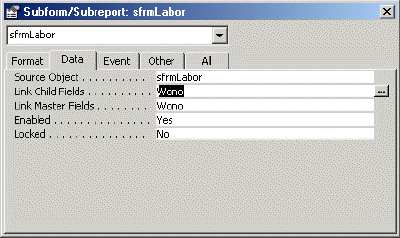
Below is the
property sheet for the subform. Note the link master and link child
properties. These show the foreign key, link child, referencing the
master's primary key. Both are wono(work order number) in this case.
Clicking on the ellipsis symbol, "...", will bring up a
dialog to configure the linking fields if you need to change them
(which you shouldn't, ordinarily).
Creating a
one-to-many Form in one step
Now that we
know what is going on let's look at how to speed the process up with
the Form Wizard. Remember how we created a subform for the child
table, a main form for the parent table, and then linked them? Well,
the wizard can figure this out, too. Or, at least it can with a
little coaching.
Launch the
Form Wizard and supply both tables as the record sources. You will
get a dialog box asking how you want to arrange the data.
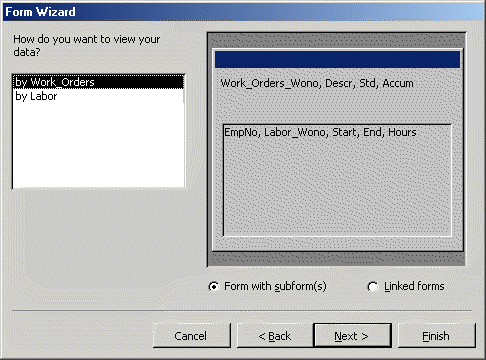
By selecting
how you view the data you can control the type of form that gets
created. The example above will build a work_orders main form with a
labor subform just as we did earlier - but in one step! Selecting by
Labor would cause a single form to be created based on a query which
Access would create automatically.
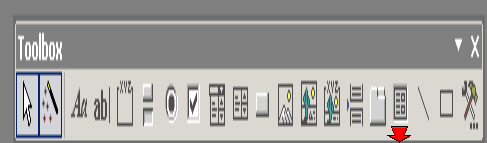
The Subform control
One more point
- there is also a subform control you can use if it's installed.
(Marked in red below). Drag and drop it on to your main form and
follow the dialog.
Many-to-Many
Forms
There really
isn't a many-to-many form, per se. Typically when you have a
many-to-many relationship you will build a main form with a subform.
Remember that we represent a many-to-many relationship with the two
original tables plus a third intersection table. Build a main form
based on one of the original parent tables. The subform will refer to
two tables: the intersection table and the other parent. How is this
done? With a query.
You can either
create the query yourself or have the wizard do it for you by adding
fields from all three tables.
Continue
to page 4 - many to many forms... |

